Monday, July 23, 2012

Mencari File dalam 3 Detik dengan Launchy


Mungkin Anda punya koleksi .mp3 80 Gb atau .DOC 63 Gb dan sering kesulitan mencari dengan cepat, atau tidak ingin FindFiles?
Semua file di StartMenu, Control PaneL, drive C:\, Directory \MyDocuments, \MyMusic, dll, langsung dapat dibuka atau dijalankan tanpa klik mouse. mau tahu caranya ...:??

DOWNLOAD LAUNCHY

Install Launchy (setelah dijalankan, Launchy "terbenam" di TaskBar).

Cara menjalankan:

1. Untuk menjalankan, tekan Alt + spasi


2. Ketikkan nama sembarang shortcut yang sudah ada di StartMenu, misalnya: "Microsoft Word".
Saat Anda ketikkan "mi" (belum selesai) maka Launchy sudah menawarkan semua file yang mengandung "mi"
3. Tekan panah bawah untuk memilih "shortcut" yang Anda inginkan
4. Setelah terpilih, tekan Enter untuk menjalankan.
Sangat gampang, kan?

Customization

Apa artinya program bagus kalau tidak bisa dirubah pemiliknya?
Bagaimana caranya agar semua .mp3 dan .doc di \folder tertentu dimasukkan dalam index?

Konsep
Launchy melakukan proses scan untuk membuat index pada semua file yang ada di:
\StartMenu dan
\Utilities (ctrLPanel, MyDocuments, MyMusic)

Launchy dapat menambahkan sembarang \folder ke index/daftar pencarian, caranya :

1. Jalankan Launchy (tekan Alt+spasi)
2. Klik kanan pada ujung window Launchy > pilih Directories


3. Ada tiga kolom, yaitu "Directories to Scan", "File Types", dan "All Directories"
Untuk menambahkan \folder baru, klik "Add" pada kolom "Directories to Scan"
Browse dan pilih folder yang akan dimasukkan dalam Index
Untuk memasukkan semua file .mp3 : pada bawah kolom "AllDirectories" ketikkan ".mp3" tanpa tanda petik lalu klik "Add"
Menuliskan "*.mp3" adalah salah, yang benar adalah ".mp3". Tuliskan tanpa tanda petik.
Untuk menambahkan file Document, gunakan ".doc" (untuk Word 1997-2003) dan ".docx" (untuk Word 2007)
Anda juga bisa tambahkan ".rtf", ".exe" atau extension apa saja yang ingin dimasukkan dalam daftar pencarian
Setelah selesai, klik OK


4. Klik kanan pada ujung window Launchy > pilih Rebuild index (agar index diperbarui dengan tambahan \folder tadi)
5. Tunggu beberapa saat dan coba jalankan programnya lagi dengan ALT + SPASI

Friday, July 20, 2012

Cara menghubungkan antar komputer via wifi (Ad Hoc)

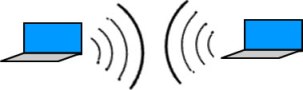
Ad Hoc antar laptop

Peer to peer antar laptop (Ad Hoc)


Teknologi Wireless LAN semakin umum digunakan terlihat dari sebagian besar laptop, notebook dan netbook yang dijual dapat dipastikan secara standar (802.11a/b/g/n) memiliki kemampuan untuk terhubung ke jaringan LAN nirkabel (hotspot), dengan begitu kita dapat melakukan file sharing antar komputer hingga berbagi koneksi internet.

Terdapat dua macam mode network access di wireless LAN:

  • Infrastructure, koneksi ini merupakan yang paling sering kita jumpai, ketika kita melihat poster FREE HOTSPOT atau HOTSPOT AVAILABLE atau banner-banner semacamnya di bandara atau di mall, dapat dipastikan akses ke hotspot menggunakan mode infrastruktur, diperlukan adanya wireless router atau Access Point (AP) untuk mendukung mode ini.
  • Ad Hoc, koneksi ini dapat dilakukan antar komputer langsung (peer to peer) tanpa Wrouter dan AP. Mode ini dapat dilakukan dengam syarat minimal ada 2 komputer yang memiliki Wireless LAN adapter.

Disini akan saya tunjukan langkah-langkah membangun koneksi Ad Hoc, nantinya akan sangat berguna untuk file sharing atau sekedar main multiplayer game tanpa harus menyiapkan AP;-)

Pengujian dilakukan pada Operating System Windows XP dan Windows 7 Home Premium. Yang paling mudah adalah menghubungkan antar komputer Windows XP. Jadi saya mulai dengan yang paling mudah dulu.

Ad hoc wifi antar Windows XP

  1. Buka Wireless Network Connection Status, caranya lewat Control PanelNetwork Connections → buka Wireless Network Connection dengan klik 2x atau ENTER. Akan muncul jendela Wireless Network Connection Status klik tombolProperties.
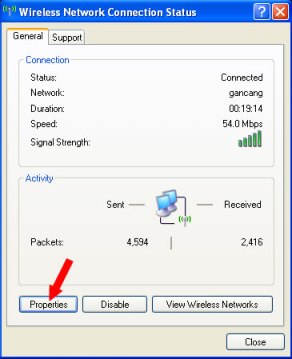
    Wireless Connection Status

    Klik Properties

  2. Setelah tombol Properties di klik akan ada jendela Wireless Network Configuration Properties setelah itu klik tab Wireless Networks dan klik tombolAdvance.
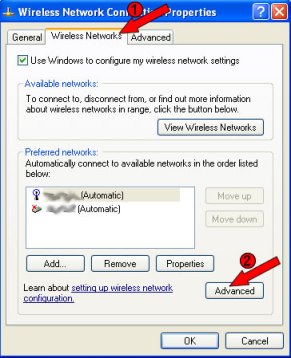
    Wireless Network Connection Properties

    Pilih tab Wireless Networks lalu klik tombol Advance

  3. Pada jendela Advance pilih Computer-to-computer (ad hoc) networks only lalu klik tombol Close.
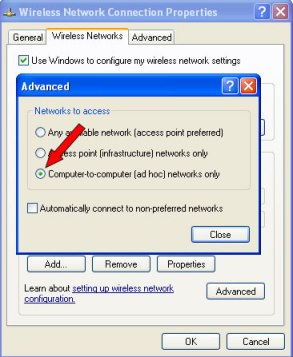
    Wireless Network Connection Properties Advance

    Pilih Computer-tocomputer (ad hoc) network only dan klik Close

  4. Kembali ke jendela Wireless Network Configuration Propertiesklik tombol Add untuk menambah informasi jaringan baru.
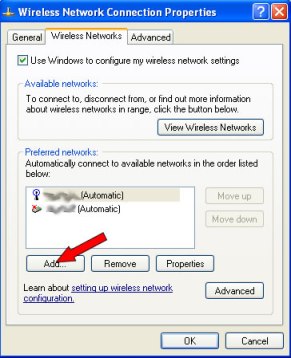
    Wireless Network Connection Properties

    Klik tombol Add pada bagian Preferred networks

  5. Jendela baru akan muncul, isi network name (SSID) dengan dirumah (bisa diganti sesuai selera ;-) ), jangan lupa di ceklis seperti gambar di bawah pada bagian The key is provided for me automatically dan This is a computer-to-computer (ad hoc) network; wireless access point are not used (jika bagian ini di-disabledan sudah terceklis maka sama saja, jangan terlalu khawatir).
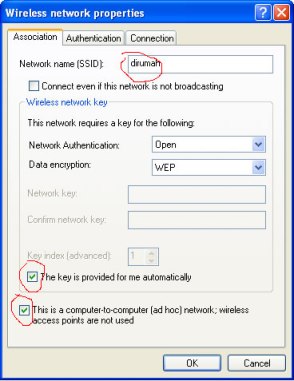
    Wireless Network Connection SSID

    Jangan lupa klik Ok jika sudah selesai.

  6. Kembali ke jendela Window Network Configuration Properties jaringan wireless baru dirumah telah berhasil anda buat dan muncul di daftar jaringan(Preferred network). Jangan lupa klik Okuntuk menyimpan semua perubahan.
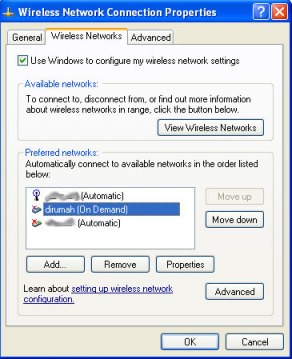
    Wireless Network Connection Properties

    SSID dirumah muncul di daftar preferred network. Jangan lupa klik Ok untuk menyimpan semua perubahan

  7. Ulang langkah diatas di komputer Windows XP lain yang ingin kita hubungkan. Ingat langkah ke-5 harus sama (SSID dan Wireless network key).
  8. Pada semua komputer, mulai koneksi dengan membuka jendela Wireless Network Connection (bisa dibuka lewat tombol View wireless networks di gambar pada langkah ke-1). Klik 2x jaringan dirumah untuk memulai koneksi.
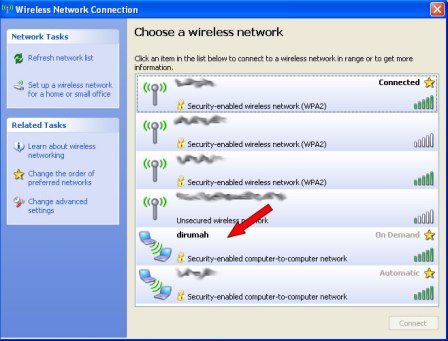
    Wireless Network List

    Wireless Network List

Ad hoc wifi antar Windows 7

  1. Buka Network and sharing center caranya masuk ke Control Panel → pilihNetwork and sharing center → pilih Set up a new connection or network.
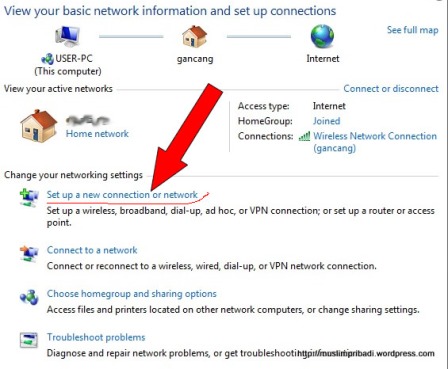
    network and sharing center

    Klik Set up a new connection or network

  2. Jendela Set up a new connection or network akan muncul scroll ke bawah lalu pilih Set up a wireless ad hoc (computer-to-computer) network dan klik tombolNext lalu klik Next di jendela informasi selanjutnya.
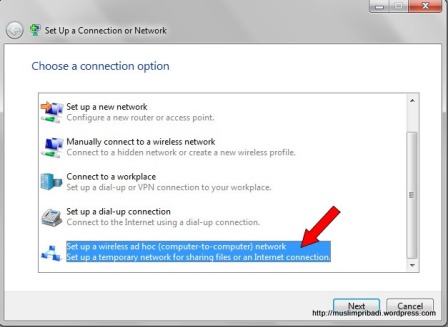
    Set up a connection or network

    Piih Set up a wireless ad hoc (computer-to-computer) network dan klik tombol Next lalu klik Next di jendela selanjutnya.

  3. Pada jendela Set up an ad hoc network masukan dirumah pada kolom Network Name, untuk Security type pilih WEP, dan Security key sepanjang 5 karakter, sebagai contoh saya isi dengan 12345 (saran: gunakan kombinasi yang lebih sulit ditebak). Jangan lupa klik tombol Next.
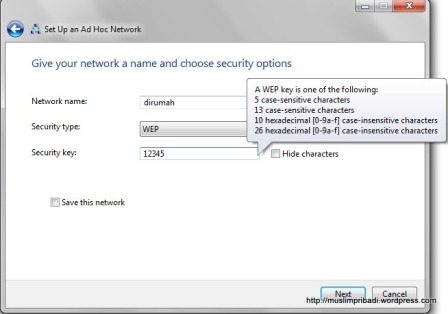
    Set up an ad hoc network

    Jika sudah jangan lupa klik tombol Next.

  4. Setelah itu akan ada sedikit proses loading oleh windows, tunggu saja mungkin makan waktu beberapa detik tergantung dari kecepatan komputer. Setelah prosesloading selesai akan muncul informasi jaringan ad hoc yang baru saja dibuat, klik tombol Close jika sudah selesai.
  5. Kembali ke jendela Network and sharing center pilih Connect to a network dan window tray dari wireless network akan muncul. Disini kita lihat network dirumahtelah ditambahkan dan sedang menunggu yang lain.
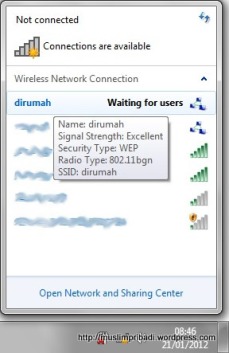
    Connect to a network

    Wireless network dirumah telah ditambahkan.

  6. Ulangi langkah di atas pada komputer windows 7 lainnya. Langkah No-3 harus sama disemua komputer windows 7 yang ingin dihubungkan (Network name,Security type, dan Security key).

Ad hoc wifi antar windows XP dan windows 7

Untuk menghubungkan komputer windows XP dan Windows 7 tanpa access point sebenarnya cukup sederhana jika kita lihat perbedaan dari langkah-langkah diatas, tinggal dibuat sedikit penyesuaian pada di Windows XP.

Lihat langkah ke-5 pada Windows XP: Hilangkan ceklis pada The key is provided to me automatically, dan isi Network key, Confirmation network key pada Windows XP sama dengan Security key pada Windows 7.

Yang harus diperhatikan

Cek alamat IP dari masing-masing komputer, coba lakukan ping jika memungkinkan (sesuaikan firewall karena ping biasanya diblokir secara default oleh windows xp atau windows 7), atau memang sudah tidak sabar, jalankan saja game multiplayerkesayangan anda ;-) .

Yang harus diingat adalah pastikan jarak antar komputer tidak terlalu jauh (lihatsignal strength) satu sama lain.

Friday, February 24, 2012

SpeedyFox Mempercepat Koneksi Firefox


Mempercepat Mozila Firefox Dengan Speedyfox


Your Firefox is working slowly? Boost Firefox in a single click with SpeedyFox absolutely for free!
You get:
Boost Firefox startup in up to 3 times!
  • Speed-up browsing history
  • Quicker operation with cookies
Available for both Windows and Mac OS

Download:
SpeedyFox for Windows (460 KB)

FREE DOWNLOAD Registry Reviver 2.1 With Crack

Registry Reviver 2.1.648.9703

Registry Reviver uses the most advanced technologies available to analyze PC errors and speed up your slow PC. Registry Reviver detects and removes all unused entries in your PC registry from failed software, driver installations, faulty installations / uninstalltions and optimizes your Windows startup.


Registry Reviver Features

Improves your computer's performance. After using Registry Reviver you will notice an immediate improvement in your PC's performance and stability.
• Stops PC crashes and errors - By running Registry Reviver regularly, your PC will boot up faster, be more stable, and experience less crashes and conflicts.
• No need to be tech-savvy. It takes a bit of PC knowledge to correctly diagnose Registry errors and edit them using manual tools. Registry Reviver does all of this for you, and more, quickly and easily.
• One click fix - Take the frustration out of a slow performing PC, and clean up your PC with one simple mouse click!
• Saves you money. No need for costly service calls or the purchase of a new PC. By using Registry Reviver you can keep your PC running like new.
• Registry Reviver protects you from mistakes. The automatic restore point setting ensures that if there are any problems with a repair, the changes can be easily reversed to get you back up and running in no time.
• New intuitive and simple to use interface makes Registry Reviver user friendly and easy to use. Registry Reviver has been developed with the novice user in mind while providing the backend structure and functionality expected by the most advanced user.
• BONUS: Startup Manager. Allows advance users to quickly and easily manage which applications they want to launch at startup to optimize boot times and overall PC performance.
• Light footprint ensures your computer's performance won't be affected while you use Registry Reviver. The last thing you want to do when running an application is for it to bog down your system and lose performance. Registry Reviver is all about helping improve your PC's performance and has been developed with this in mind.
• 24/7 technical support. Support for Registry Reviver is available from within the product and via email. Turn around time for a support request is less than 2 hours.
• Registry Reviver is RISK FREE. If you are not completely satisfied, Registry Reviver comes with a no questions asked 30-day money back guarantee.
• Windows 7 compatible. Many Registry Cleaners are not yet Windows 7 compatible. With the big push for Microsoft on this launch, and with most new PC's coming with Windows 7, the need for Windows 7 support is essential.


Thursday, February 23, 2012

PATCH PES 2011 4.02 FINAL


New Features:

  1. Balls:
  2. Torfabrik + CL Finale Munich
  3. Boots: adidas adiPower Predator White-Blue, Nike MV Superfly III Orange, Puma v1.11
  4. GreenFaces: Lots of new faceserver
  5. faces (in total more than 2850 faces!)
  6. Kits: Aachen, Aston Villa, Atalanta, Atletico, Athletic, Aue, Augsburg, Barcelona, Belgium, Benfica, Birmingham, Bochum, Braunschweig, Bremen, Brest, Brugge, Celta, Cesena, Chivas Guadalajara, Cottbus, CSKA Sofia, Derby, Dijon, Dnipro, Dortmund, Dresden, Ecuador, Espanyol, Evian, Fiorentina, Eintracht Frankfurt, Freiburg, Espanyol, FSV Frankfurt, Freiburg, Galatasaray, Genoa, Granada, Hamburg, Hertha BSC, Hoffenheim, Ingolstadt, Inter, Karlsruhe, Köln, Lecce, Leeds, Lens, Leverkusen, Levski, Lorient, Manchester United, 1860 München, Napoli, Novara, Palermo, Paris, Porto, Qatar, QPR, Racing, Reading, Recreativo, Roma, Siena, Sporting, Steaua, Swansea, Tottenham, Rostock, Valencia, Valladolid, Villarreal, Young Boys
  7. Other: updated a few national teams (England, Germany, Italy, Spain); updated lots of lineups for club teamsTransfers: Up-to-date until 12/08/11 for nearly all teams
Note: Remember to use the switch before starting a master league or become a legend career. Read and follow the instructions and information here before posting questions.

General Features:
  • 7 Big Leagues (Bundesliga, Premier League, Ligue 1, Eredivisie, Serie A, Primera División, Russian Premier League) Completed including correct squads, kits, lineups, logos, map locations; All players with correct stats, appearence and boots
  • 5 2nd divisions to choose from in the selector (2. Bundesliga, Npower Championship, Segunda División, Serie B & Ligue 2)
  • Other newly added teams are
  1. All missing Champions & Europa league teams
  2. Fluminense, Gremio & Santos
  3. Standard de Liège, Trabzonspor, Austria Vienna, FC Zürich, FC Dnipro, Dynamo Moscow, Lokomotiv Moscow, CD Nacional, Sturm Graz, SC Vitória, Wisla Krakow, Legia Warszawa, Luzern, Kayserispor
  4. Albania, Belarus, Estonia, Georgia, Lithuania, Macedonia
  5. Braunschweig, Dresden, Rostock
  • Correct squads, player names & kits for all national teams in the game
  • New stadiums to choose from in the selector (Imtech Arena, Moses Mabhida Stadium, PESEDIT Stadium, Schüco Arena)
  • New adboardsLatest boots + assigned to correct playersNew edit mode hairstylesNew faces (more than 2500 in faceserver!!!)
  • New kits (most 11/12 kits already included!)
  • New menus (30 custom menu pics, 2 default Messi themes)
  • New music (list below)
  • New referee kitsNew scoreboards (more than 20 scoreboards selectable in PESEDIT Selector).
Exact features of each patch version can be found in the Readme.pdf.

LINK DOWNLOAD VIA MediaFire :
Catatan :
untuk menggunakan patch ini anda harus memiliki NET.Framwork 4.0,
jika belum memiliki silahkan download dahulu dibawah ini

LINK DOWNLOAD NET.Framwork 4.0 :

Cara Menggunakan:
  1. Install terlebih dahulu net.framwork 4.0 (jika belum ada)
  2. Ekstrak terlebih dahulu file .rar Patch PES 2011 versi 4.02.
  3. Install Patch PESEdit versi 4.03.
  4. Install Patch PESEdit versi 4.0.14.
  5. Masuk ke program files folder PES 2011 kemudian masuk ke folder kitserver –> manager.exe kemudian attach (untuk pengguna Windows 7 maka klik kanan terlebih dahulu kemudian run as administrator)


MEMBUAT TULISAN BERWARNA PADA CHAT FACEBOOK


Facebook telah membatasi pengguna untuk chat dalam teks berwarna hitam saja karena pengaruh kepada kecepatan dan overloading server. Tapi sekarang kita bisa mengirim teks atau tulisan berwarna di jendela chat facebook kita dan tidak hanya tulisan hitam saja, Ada beberapa kode-kode khusus yang dapat Kita gunakan untuk mengirim teks berwarna-warni di chat facebook. Trik ini hanya berdasarkan fakta bahwa ketika profil ini ID dimasukkan di antara tanda kurung siku, maka secara otomatis berubah menjadi gambar profil. Dan ID ini khusus diciptakan untuk tujuan ini.
Anda juga dapat mengirim pesan dalam teks berwarna tetapi kode ini tidak akan bekerja di update Status. Ini juga tidak akan bekerja jika orang lain menggunakan chat dari ponselnya. Berikut ini daftar kode dengan hurufnya:

[[107015582669715]] = A
[[116067591741123]] = B
[[115602405121532]] = C
[[112542438763744]] = D
[[115430438474268]] = E
[[109225112442557]] = F
[[111532845537326]] = G
[[111356865552629]] = H
[[109294689102123]] = I
[[126362660720793]] = J
[[116651741681944]] = K
[[115807951764667]] = L
[[106596672714242]] = M
[[108634132504932]] = N
[[116564658357124]] = O
[[111669128857397]] = P
[[107061805996548]] = Q
[[106699962703083]] = R
[[115927268419031]] = S
[[112669162092780]] = T
[[108983579135532]] = U
[[107023745999320]] = V
[[106678406038354]] = W
[[116740548336581]] = X
[[112416755444217]] = Y
[[165724910215]] = Z

contoh penulisan :drajat = [[112542438763744]] [[106699962703083]] [[107015582669715]] [[126362660720793]] [[107015582669715]] [[112669162092780]]
Catatan : Pastikan ada spasi diantara kode2nya.
SELAMAT MENCOBA